How to use the Ultimate Retrieval Tool
How it picks the right questions at the right time, four ways to use it, and everything it can do.
My classes: the right question at the right time
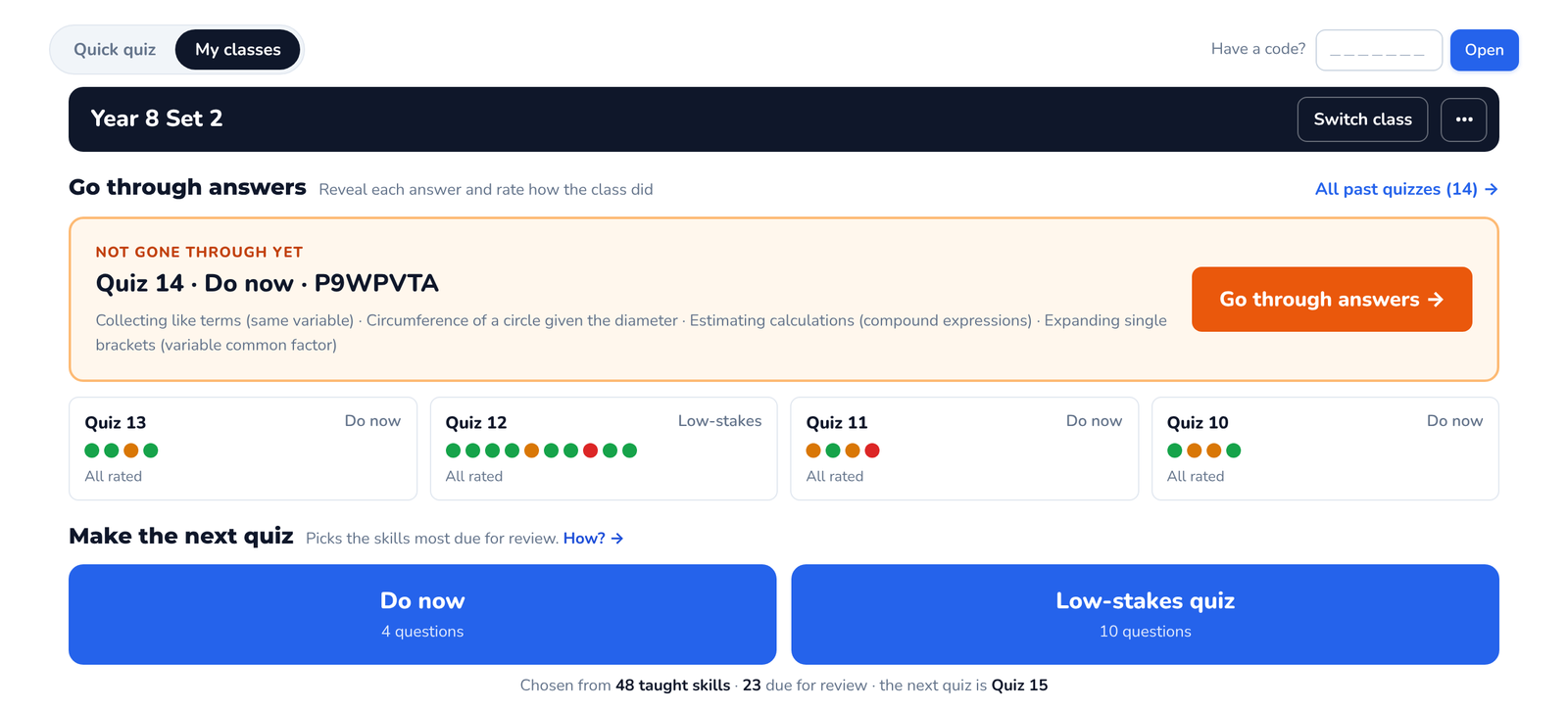
Tell it what a class has been taught. Press one button. It picks the skills that are due a revisit, and leaves longer gaps each time the class gets them right.
Set up once
Three steps, then one button
- Open My classes and create a class. You get a class code that works on any computer.
- Tick each skill once you have taught it. Skills you taught earlier in the year count too.
- Press Do now or Low-stakes quiz. The tool chooses the questions.
No log in and no student data: the class is a list of skills and a record of how each quiz went.
The clock counts quizzes, not days
Each quiz you make for a class moves its clock on by one. A skill is due when enough quizzes have passed since it last came up. So it works the same whether you quiz a class every lesson or once a week: the gaps are counted in quizzes.
Most got it: up a step, so the next gap is longer.
Mixed: same step, same gap again.
Most didn’t: back to step 1, so it is in the very next quiz.
After each question
Red, amber, green
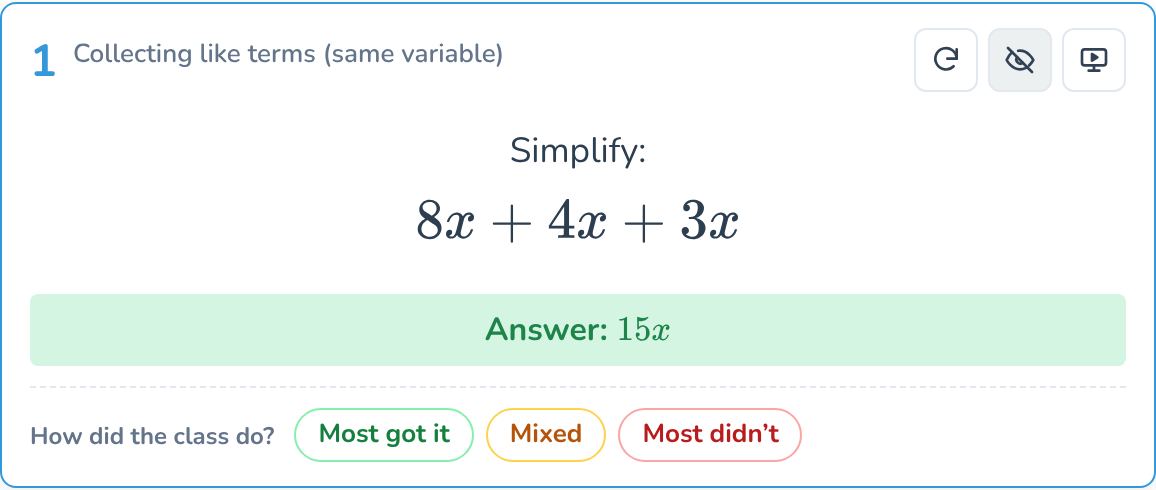
When you go through the answers, reveal each one and tap how the class did. That is the only thing you have to do.
- Most got it: the skill moves up a step and comes back after a longer gap.
- Mixed: it stays on its step and comes back after the same gap.
- Most didn’t: it goes back to step 1 and is in the very next quiz.
Skip the rating and the tool treats it as green.
One skill’s journey
- After Quiz 4You tick it as taught
- next quizQuiz 5Most got it
- +3Quiz 8Most got it
- +6Quiz 14Mixed
- +6 againQuiz 20Most didn’t
- next quizQuiz 21Most got it
- +3Quiz 24Most got it
- +6Quiz 30Most got it
- +12Quiz 42Next due
Why it works. Recalling something strengthens the memory, and more so when the recall takes some effort. A gap that grows each time the class succeeds keeps each skill coming back just as it starts to slip, and you never have to track it yourself.
The details, for the curious
- Due first. Every quiz takes the skills that are due before any that are not, the most overdue first. If more are due than the quiz has questions, the rest wait for the next quiz.
- Spread out. No skill twice in one quiz, unless there aren’t enough taught yet, and one skill per topic where it can, so one topic doesn’t fill the quiz.
- Only on time counts. A skill climbs a step only if it was due when it came up. If it turns up early (say you add a quick quiz to the class), the clock restarts but it stays on its step.
- Taught before you started. Skills ticked before the class’s first quiz get their first check after 3 quizzes. If most get it, they jump straight to step 4 (12 quizzes): the class has shown it remembers.
- Not rated counts as green. If a skill comes up twice in one quiz, the worse rating counts.
- Every quiz counts. Follow-ups, and quick quizzes added to the class, are quizzes for the class too, and move the clock on by one.
- Not many skills yet? With fewer taught skills than questions, skills repeat to fill the quiz.
Four ways to use it
Each one takes a couple of minutes to set up.
Do now
Do now
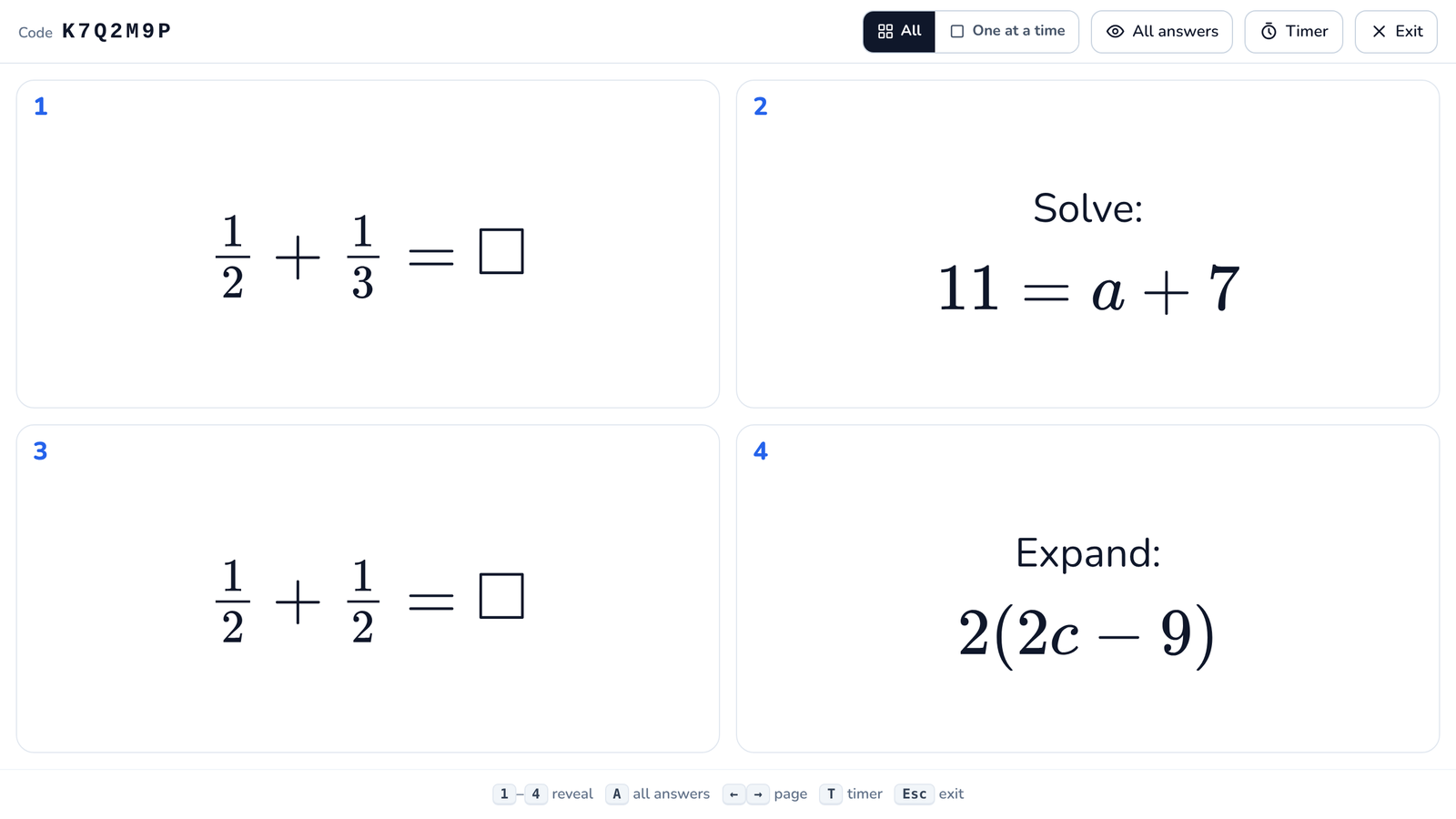
Four questions on the board as students come in. A calm start that gets them thinking about what they learned last week, last month and last year.
- Choose Do now (4) and tick skills from earlier in the year, or press a year button for an instant quiz.
- Press Present. Show all four at once, or one at a time.
- When students have had a go, reveal the answers one by one (keys 1 to 4).
Someone stuck? Press ↻ on that question for a fresh one on the same skill, and use it to check the misconception has cleared.
Low-stakes quiz
Low-stakes quiz
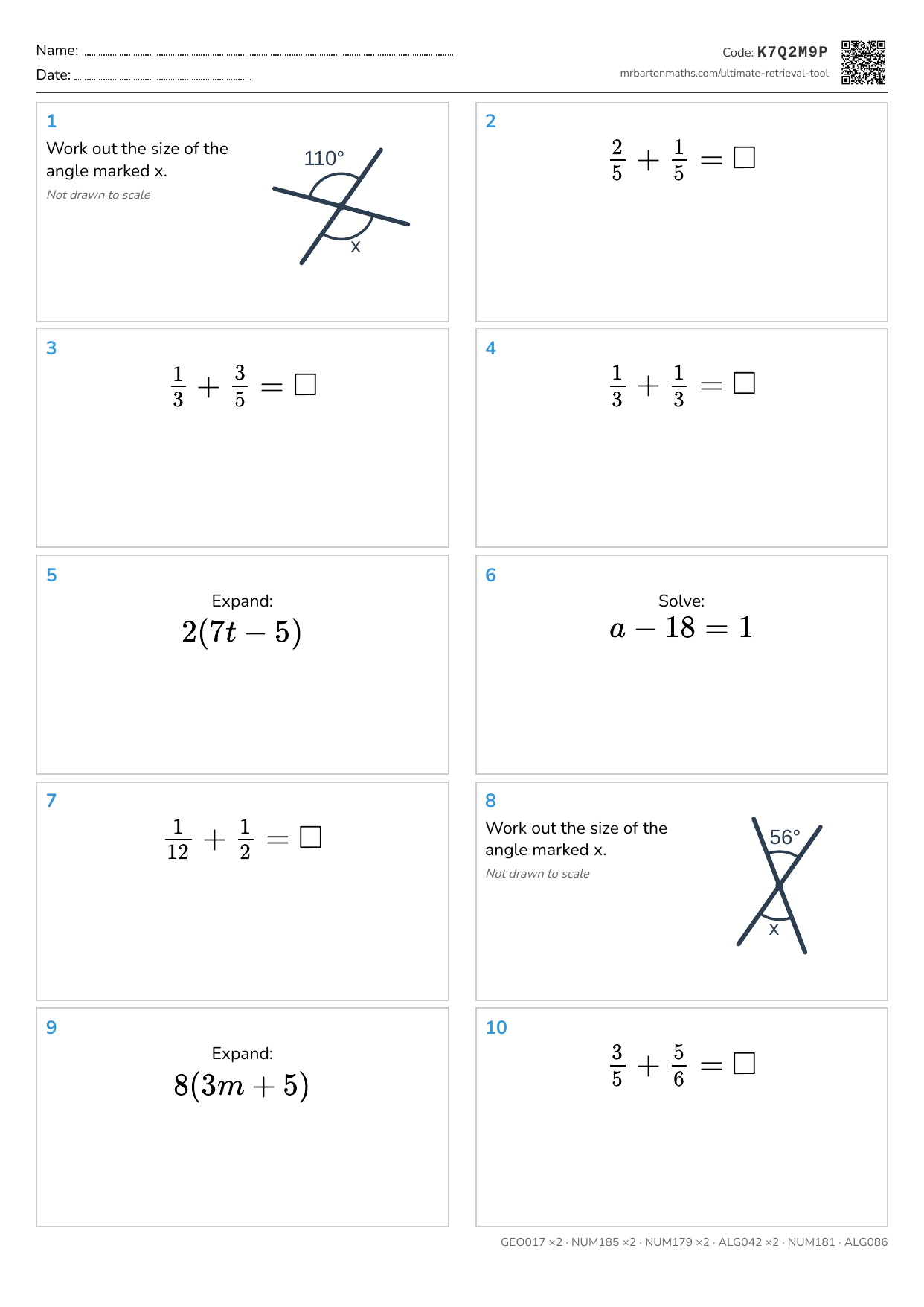
A weekly ten-question quiz: printed, done in silence, then gone through together. The point is retrieval, not a grade.
- Choose Low-stakes quiz (10) and tick the skills you have taught so far. Tick more than ten and each quiz picks a spread.
- Print the worksheet, and the answers if you want them.
- Next lesson, type the code from the top of the sheet. The same quiz comes back, ready to go through on the board.
Use My classes and the tool remembers what each class has been taught, then picks the skills that are due a revisit.
Interleaved practice
Interleaved practice
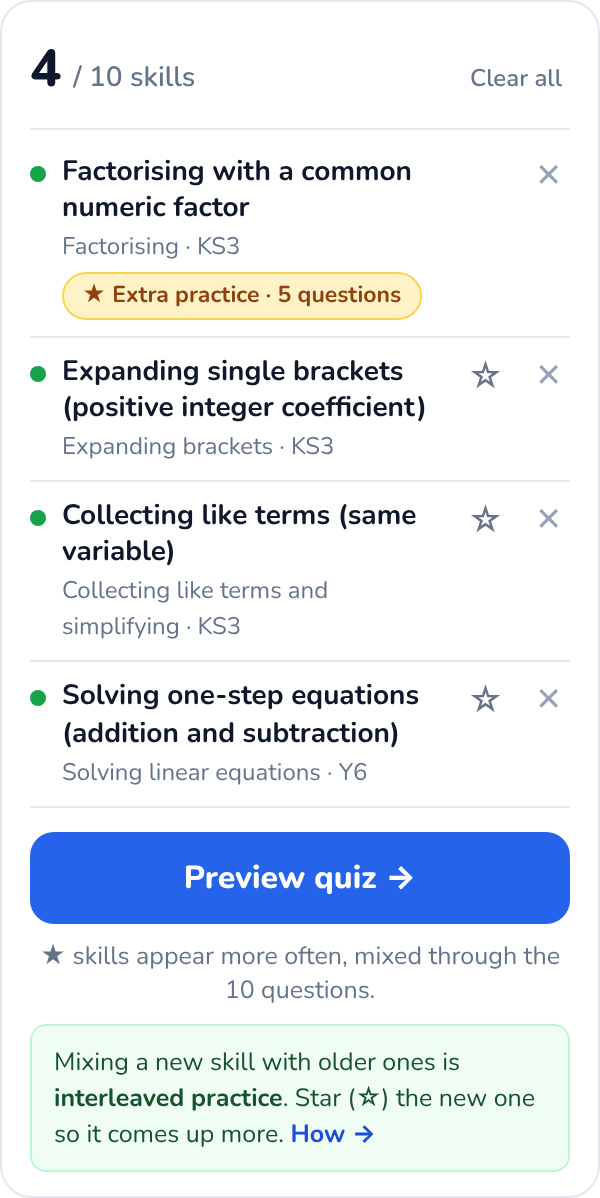
Interleaving means mixing different kinds of question, so students have to decide which method to use instead of repeating the one they practised a minute ago.
It feels harder, and that is the point. Choosing the method is the skill they need in an exam.
- Tick the skill you taught this week.
- Add three or four older skills that look similar or are easy to confuse with it.
- Star (☆) the new skill so it gets extra questions, mixed through the quiz.
Good mixes put similar-looking questions side by side: expanding and factorising, area and perimeter, adding and multiplying fractions.
Homework
Homework
AI can do the homework now. So stop treating homework as the test.
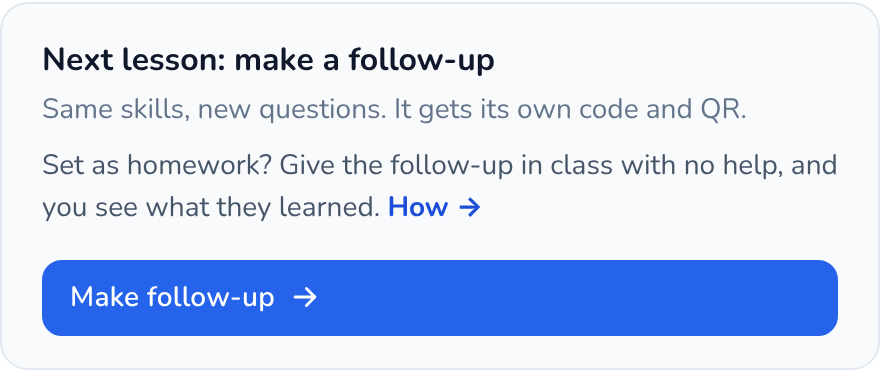
Set a quiz as homework and let students use the worked answers, a friend or AI. Next lesson, give them the follow-up quiz in class with no help. Same skills, new questions. How they do shows whether the homework turned into learning.
- Make the quiz, then print it or share its code so students can do it at home.
- Next lesson, open it with its code and press Make follow-up.
- Students do the follow-up in class, then you go through it together.
Tell students about the follow-up when you set the homework. It changes how they do it.
What it can do
More than 750 skills, from Year 1 to GCSE.
Also in one click
A follow-up quiz, in one click
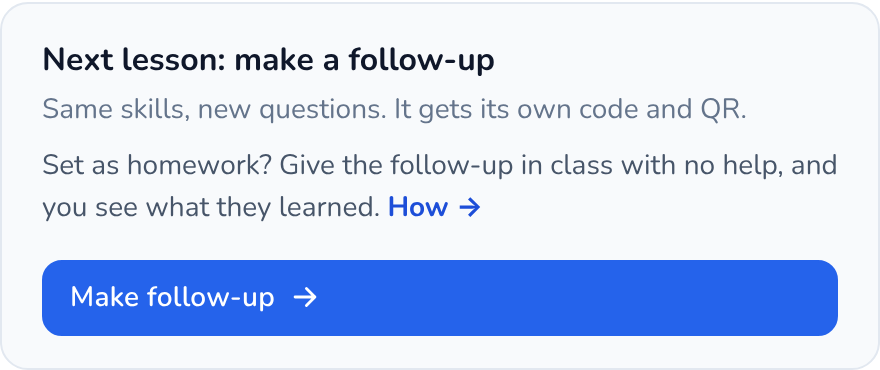
Every saved quiz has a Make follow-up button. It builds a new quiz on the same skills with fresh questions.
Use it for next lesson’s retrieval, for practice straight after going through the answers, or as the in-class check on homework. It gets its own code and QR.
A code on every quiz
Type the code, or scan the QR on the sheet, and the same quiz comes back with answers and full working. Share it with students or your department.
One side of A4
Four questions or ten, the worksheet fits on one side of A4. The answers print on a second sheet if you want them.
Present mode
Questions big enough for the back row. Answers stay hidden until you reveal them, one at a time or all at once.
A fresh question on any skill
Not keen on a question? Press ↻ for another on the same skill, with new numbers or a new diagram.
Diagrams, not just sums
Angles, shapes, graphs and charts are drawn for you, so geometry and statistics get proper retrieval too.
My classes
Tell it what a class has been taught and it picks the skills due a revisit. How it decides. Made a quick quiz first? Add it to a class from the Share menu.
For students
No account, nothing to install.
Practise on your own
Pick the skills you want to get better at and make a quiz. Every question has a full worked answer, and ↻ gives you another go on the same skill.
Got a code from your teacher?
Type it into Have a code? at the top of the tool and you get the exact quiz your teacher set, with the answers and working.
Get the most out of this tool
The tool writes the questions. These two short books cover the rest: when a Do Now earns its place, how to mark a quiz (or not), and what to do when the same thing goes wrong three weeks running.
Tips for Teachers guide to…
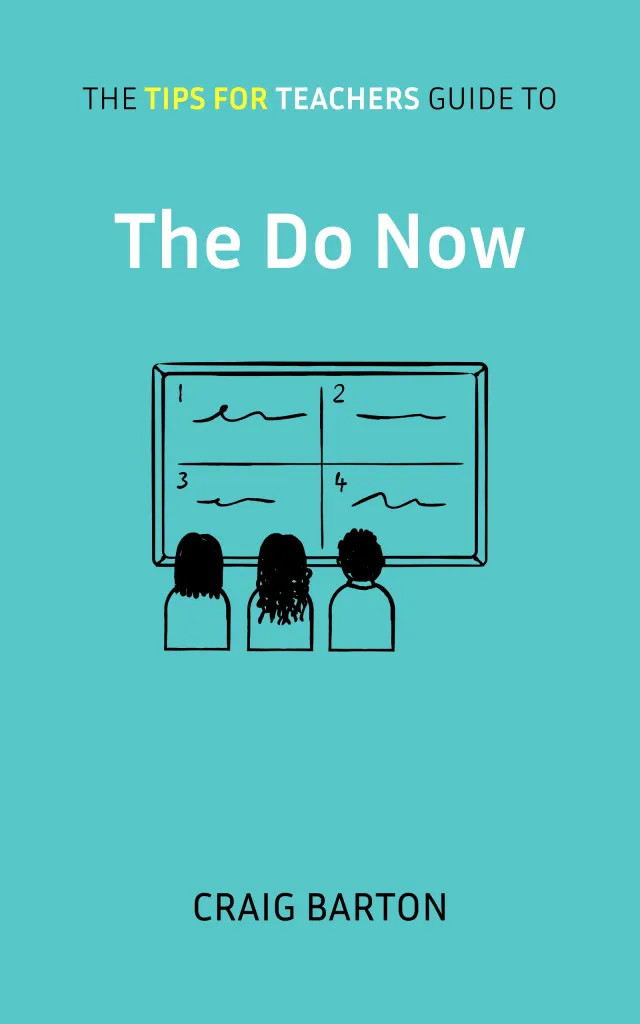
The Do Now
Those essential first few minutes of a lesson: the content and structure of effective Do Nows, how to check for understanding, and how to respond to what students get wrong.
Find out more →
Tips for Teachers guide to…
Low-Stakes Quizzes
A weekly Low-Stakes Quiz can be one of the most effective ways to give students regular retrieval. This book covers what makes a quiz effective: its content, format, marking, and what students do with their corrections.
Find out more →